
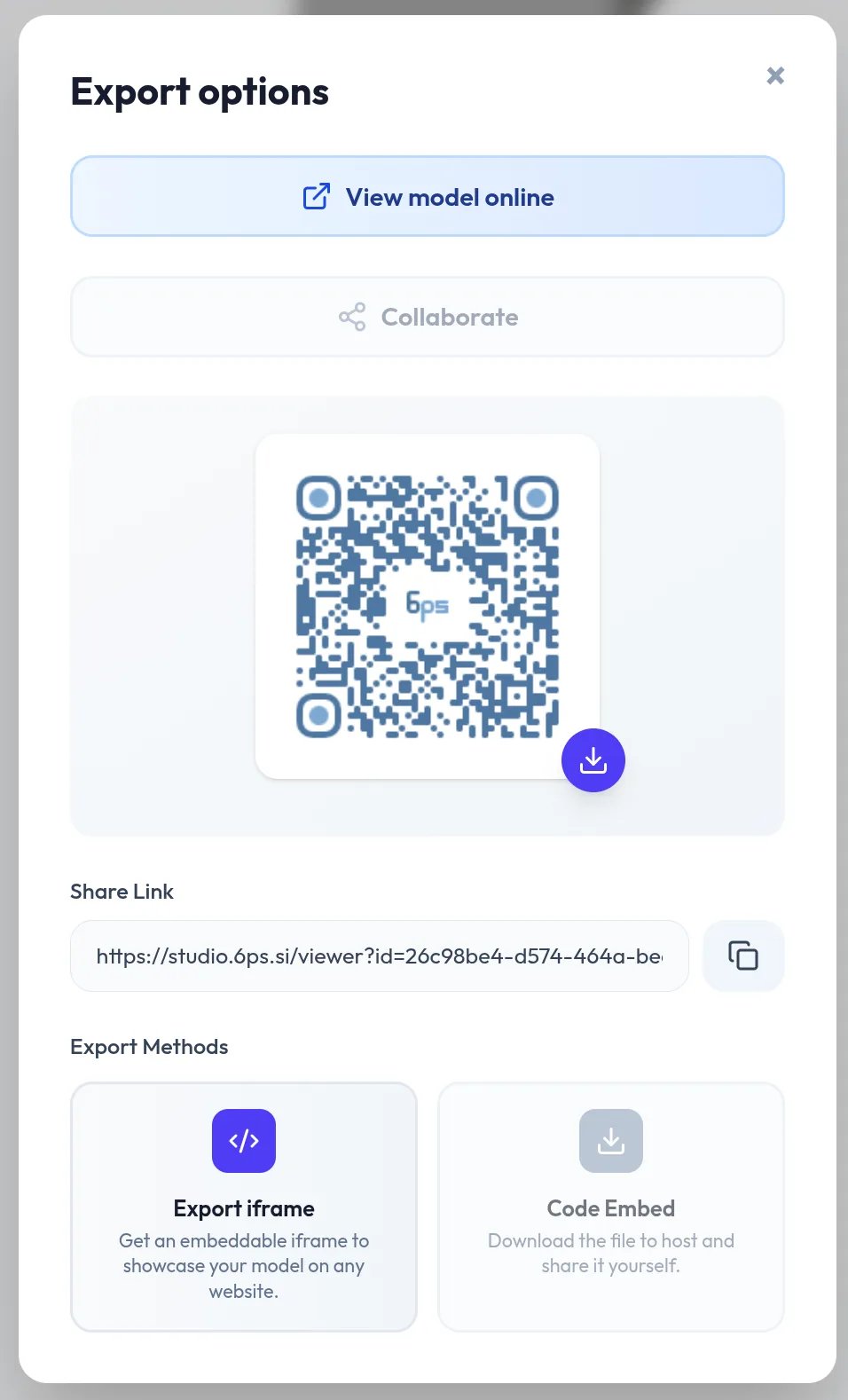
Sharing a link
When publishing finishes, the share dialog shows the Share Link and a downloadable QR code. Later, use SHARE on the project’s viewer page. The viewer page shows the live viewer, the project name, creator, and description, likes, comments, and statistics. On a phone, visitors tap the viewer to start interacting. Who can open the link depends on the project’s visibility. As the owner, you also see USE IN WEBSITE and EDIT on the viewer page.Embedding in a site
Copy the embed code with Embed as iFrame in the share dialog, or with USE IN WEBSITE on the viewer page, and paste it into your site’s HTML. It looks like this:width and height to fit your page. In WordPress, paste the code into a Custom HTML block. If you use the iframe plugin, USE IN WEBSITE also offers a shortcode.