
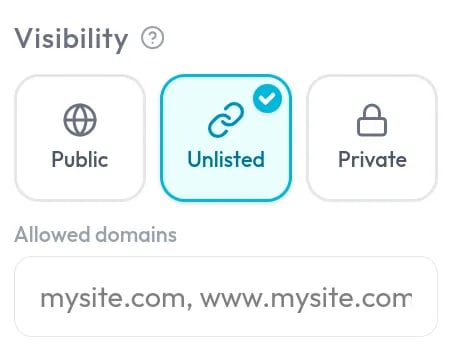
Visibility options
You choose visibility in the Visibility selector. It appears in the Scene info panel of the 3D Editor and when you publish a walkthrough.The owner of a project and team admins can change its visibility.
Domain locking
Domain locking makes an embedded project load only on the websites you list.1
Choose Unlisted
Select Unlisted. The Allowed domains field opens below the options.
2
Enter your domains
Type the sites that may embed the project, separated by commas. For example:
mysite.com, www.mysite.com. Enter plain hostnames without a protocol or a path.3
Save or publish
Save your changes. As soon as the list has at least one domain, the project is domain locked. Clear the list to return to a plain unlisted project.
mysite.com and www.mysite.com are separate entries. Studio’s own pages always load your project, and you and your team members can always open it.
Private projects
A private project opens only for you and the members of your organization, who see it in My Team. Access uses short-lived signed keys that rotate regularly, so an old link or a copied address stops working on its own.Personal and team ownership
If you belong to a team, projects you create can live in your own library or in your team’s. In the Scene info panel of the 3D Editor and in the walkthrough publish dialog, the Save as: selector shows two buttons: Personal and your team’s name.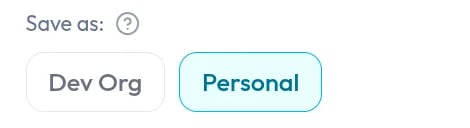
- Personal keeps the project in My Scenes.
- Your team’s name moves it to My Team, where every member of the team can see it.
Team roles decide who can edit or delete team content. See Members and roles.