
Supported formats
The Gaussian Splatting formats suit large captured scenes, such as a building interior, and small single-object scans for product pages.
Adding a model
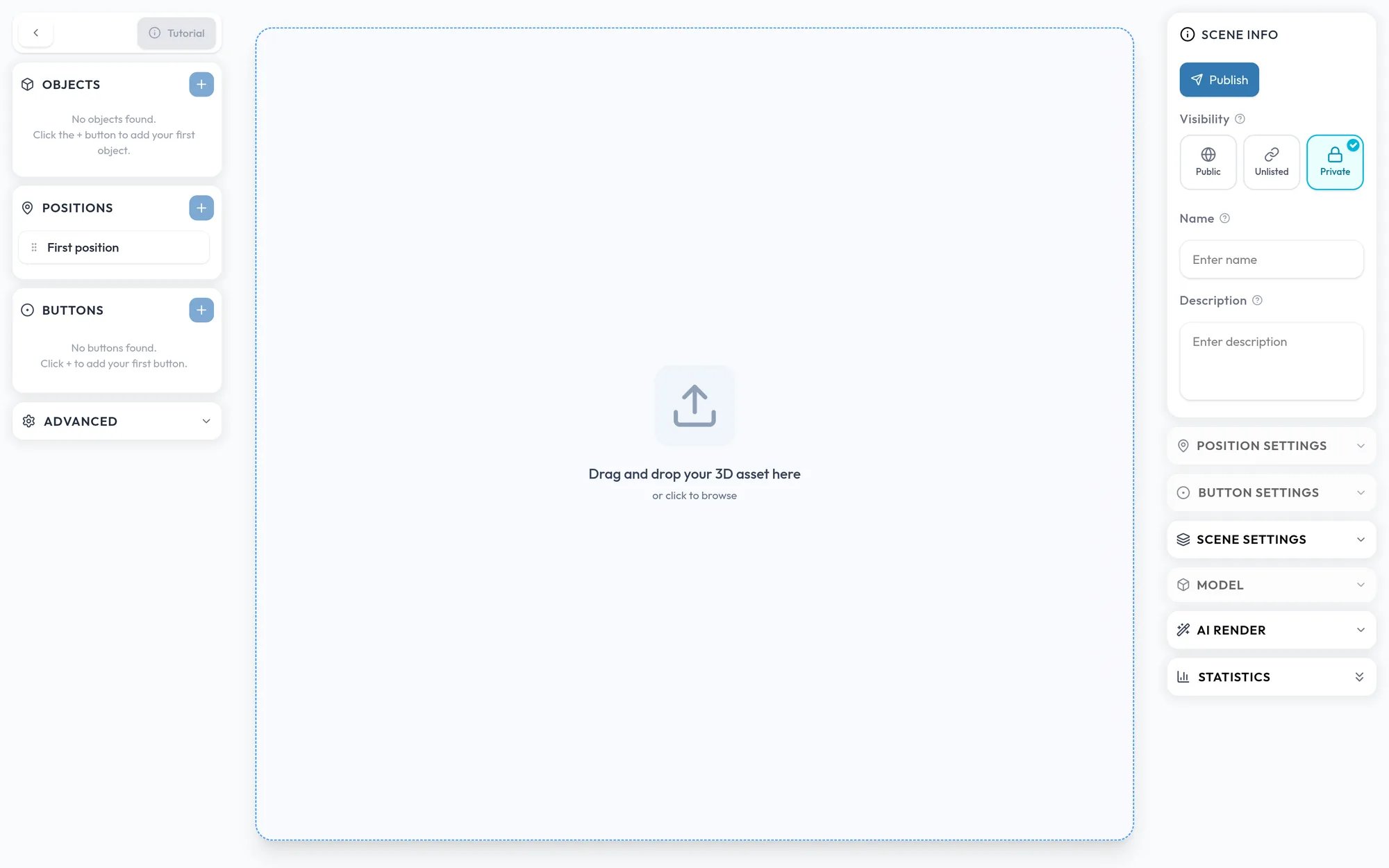
Drag the file onto the drop zone that says Drag and drop your 3D asset here, or click it to browse. The model appears in the viewer and in the Objects panel. To add more models to the same scene, use the add button in the Objects panel. A glTF model often points to separate files, such as a.bin file and texture images. Select them together with the .gltf file. If a required file is missing, the editor lists the names it could not find. A GLB file holds everything in one file.
Studio optimizes uploaded models so they run smoothly on phones and other lower-powered devices. Uploaded models count toward your plan’s storage.
Converting FBX
When you drop an FBX file, the editor asks Convert FBX to GLB? Click Convert. The conversion runs in your browser.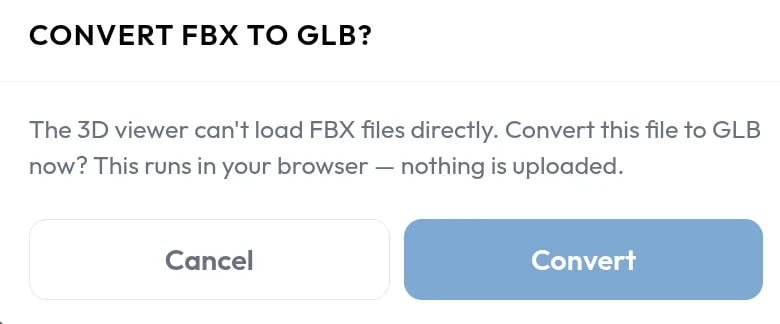
.fbx file, then click Download GLB.