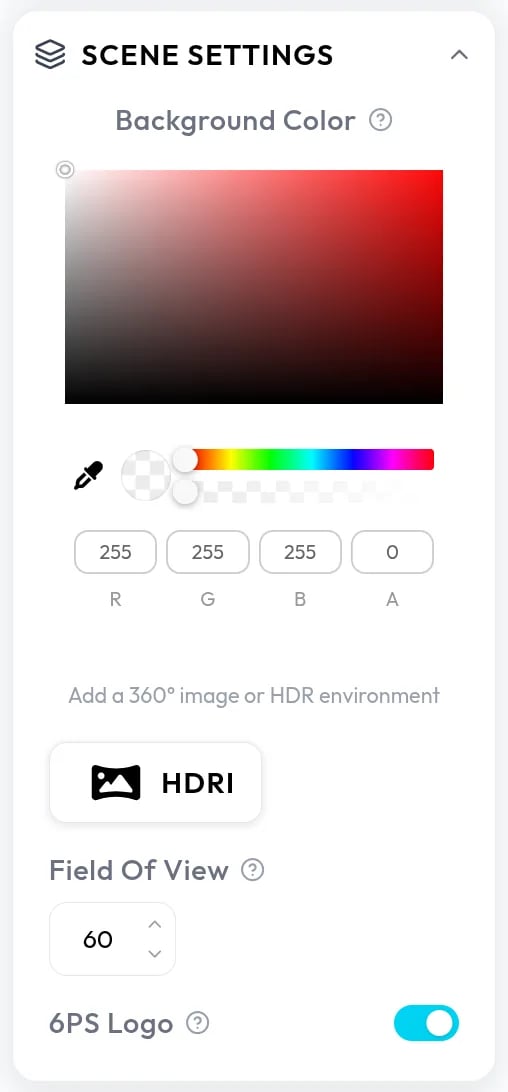
The Scene Settings panel in the right sidebar controls what surrounds your model. The Advanced panel in the left sidebar adds visual effects. Both apply to every model in the scene.
The Scene Settings panel with the background color picker and the Select HDRI dialog

Background

With no environment image set, Background Color sets the viewer background, including its transparency. To use an image, click HDRI, add a file in the Select HDRI dialog, and click Add background. Studio detects the type from the file extension: An image replaces the color picker with these controls: The red trash button next to HDRI removes the image.

Field of view

Field of view sets the camera’s view angle in degrees, from 10 to 170. It applies to every camera position. The 6PS Logo switch shows or hides the logo overlay in the viewer.
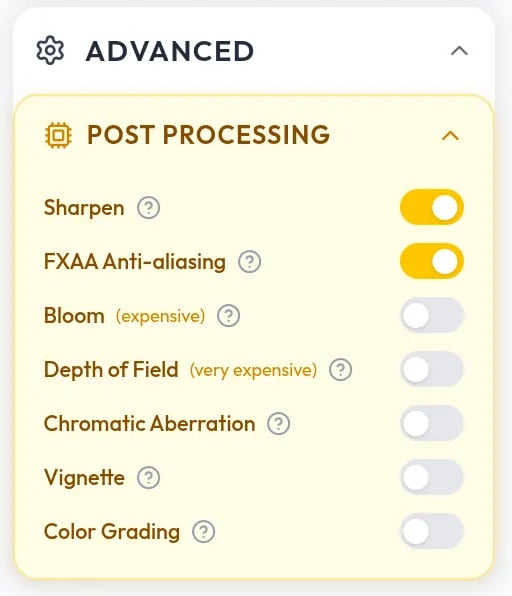
The Advanced panel with the Post Processing section listing switches for Sharpen, FXAA Anti-aliasing, Bloom, Depth of Field, Chromatic Aberration, Vignette, and Color Grading

Advanced display settings

Open Advanced, then Post Processing, to switch on Sharpen, FXAA Anti-aliasing, Bloom, Depth of Field, Chromatic Aberration, Vignette, or Color Grading. Bloom is marked as expensive and Depth of Field as very expensive. They ask more of the viewer’s device, so test them on a phone before you publish.