A camera position is a saved view of your model: where the camera looks, how far away it is, and how far a visitor can turn it. You build a list of positions in the Positions panel and fine-tune each one in Position Settings.
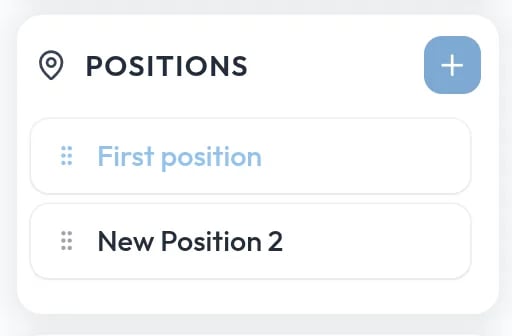
The Positions panel listing saved positions with a plus button to add one

Saving a view

Frame the model in the viewer, then click + in the Positions panel. Studio saves the current view as a new position and opens its settings. To change a saved view later, frame the model again, select the position, and click Capture. Capture replaces the angle, zoom, and target and keeps the limits.

Position settings

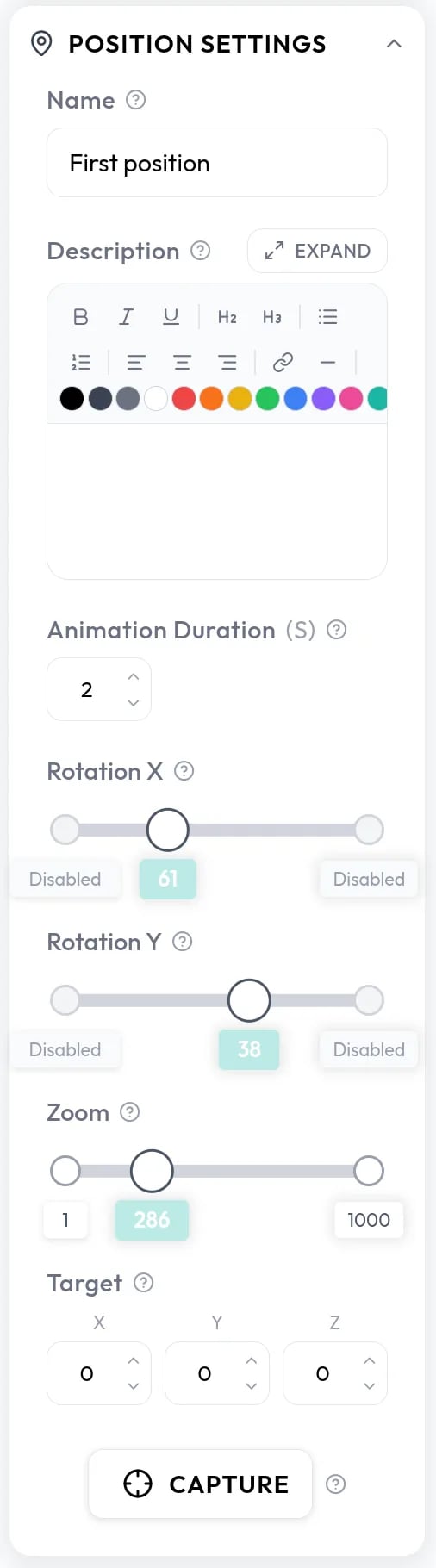
The Position Settings panel with name, description, animation duration, target, and the Rotation X, Rotation Y, and Zoom sliders

Framing and limits

Three sliders each have a handle for the current value and handles for the minimum and maximum a visitor can reach. On the rotation sliders, drag a limit handle all the way to the edge to switch that limit off. The lens angle is a scene-wide setting. See Field of view.

Ordering

The first position in the list is the primary position, the view your model opens with. Drag the grip handle to reorder, or choose Primary Position in a position’s menu to move it to the top. The last remaining position cannot be deleted.