
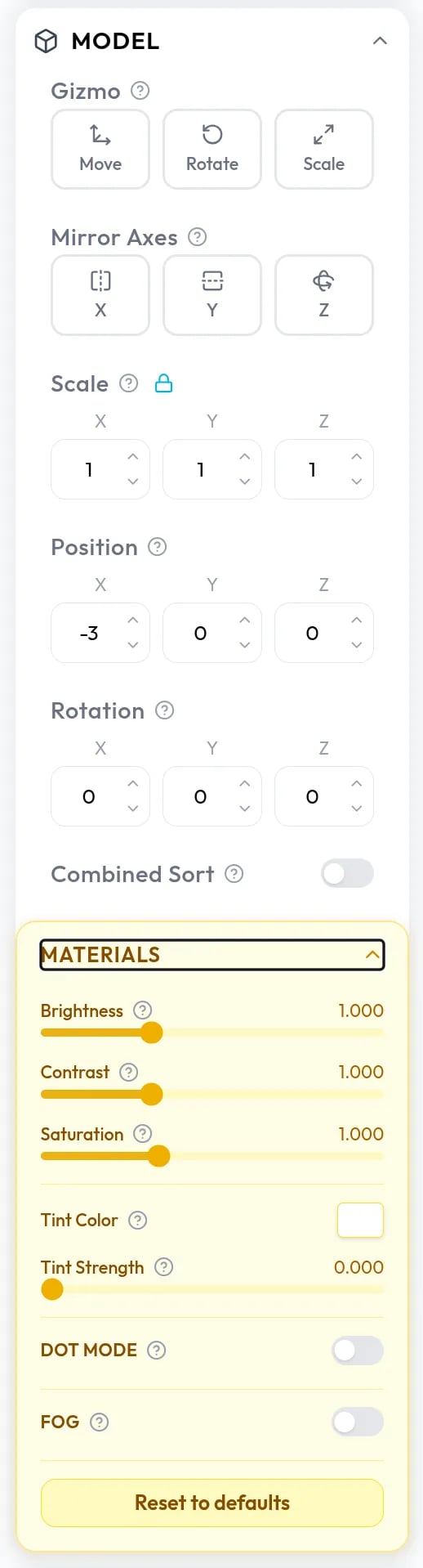
Move, rotate, and scale
Under Gizmo, choose Move, Rotate, or Scale to show handles on the model, then drag them in the viewer. For exact values, use the Scale, Position, and Rotation fields. Rotation is in degrees. The padlock next to Scale keeps all three axes together so the model scales evenly. Unlock it to scale the axes separately. When you add the first model to a scene, Studio suggests a scale so the model fills the viewer. Mirror Axes flips the model across the X, Y, or Z axis, which helps when a model arrives back to front or upside down.Materials
The Materials controls apply to Gaussian splat models (
.ply, .sog, .splat, and .spz files).
Dot Mode replaces the soft edges of a splat with hard-edged circles for a pointillist look. Dot Radius sets the size of each dot.
Fog fades a splat to Fog Color with distance. The fade starts at Fog Near and is complete at Fog Far. Both sliders sit close to the far edge of the view, so make small adjustments.